





JobDone examples
Choose the JobDone app you want to install. The guide will then show only the matching screenshots.
Step by step
01
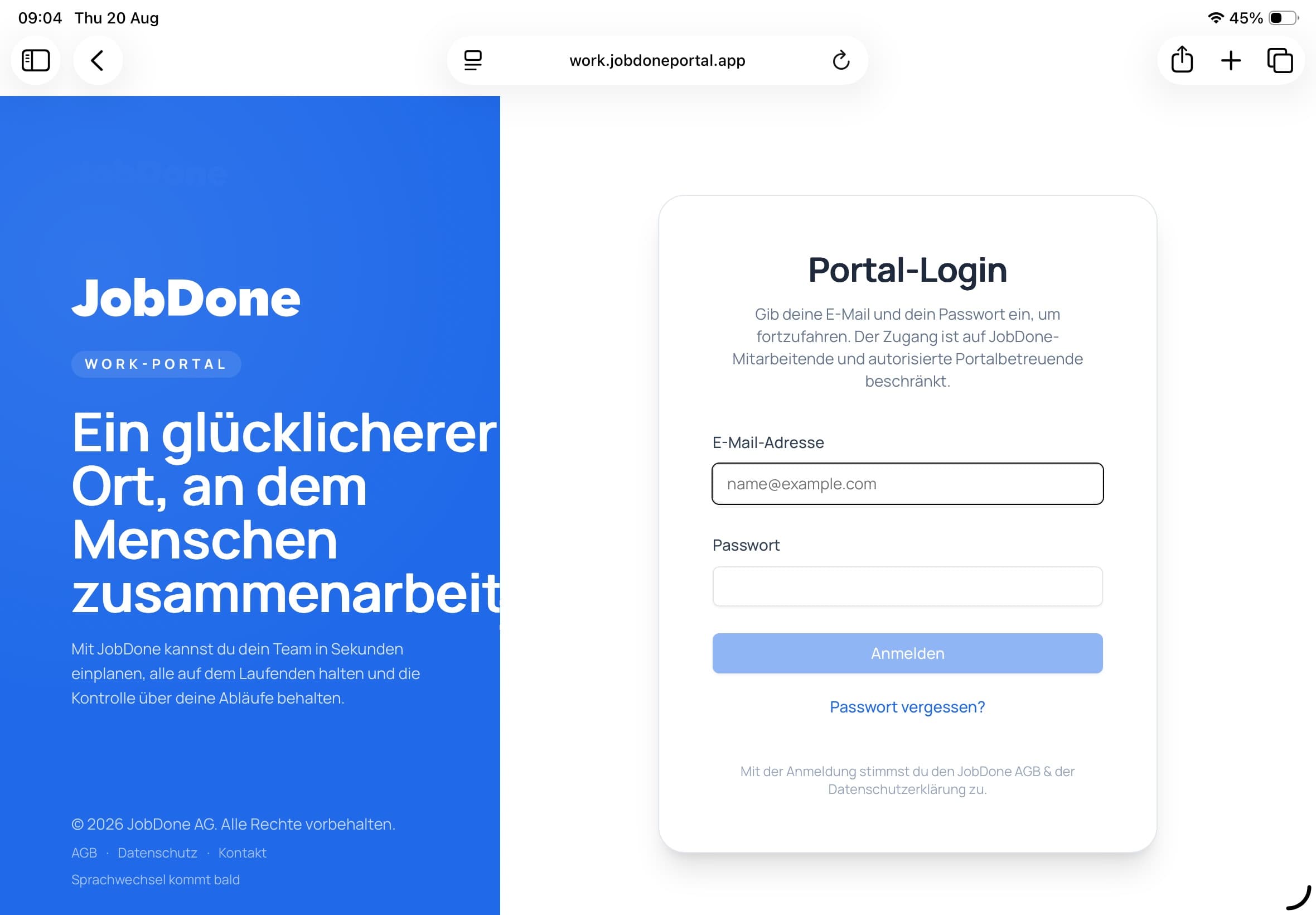
Open the website in Safari
Open the address directly in Safari and confirm that the expected sign-in page appears.
02
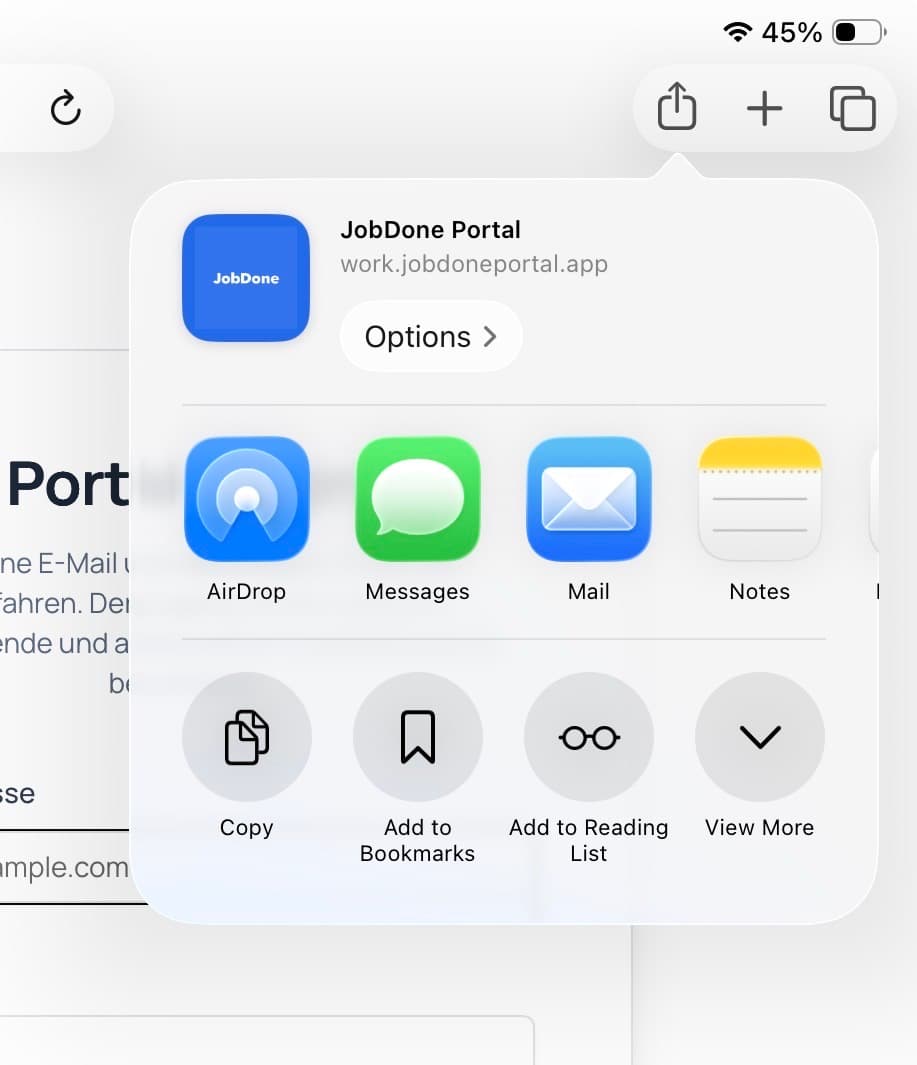
Open the Share menu
Tap the Share button at the top right – the square with an upward arrow.
03
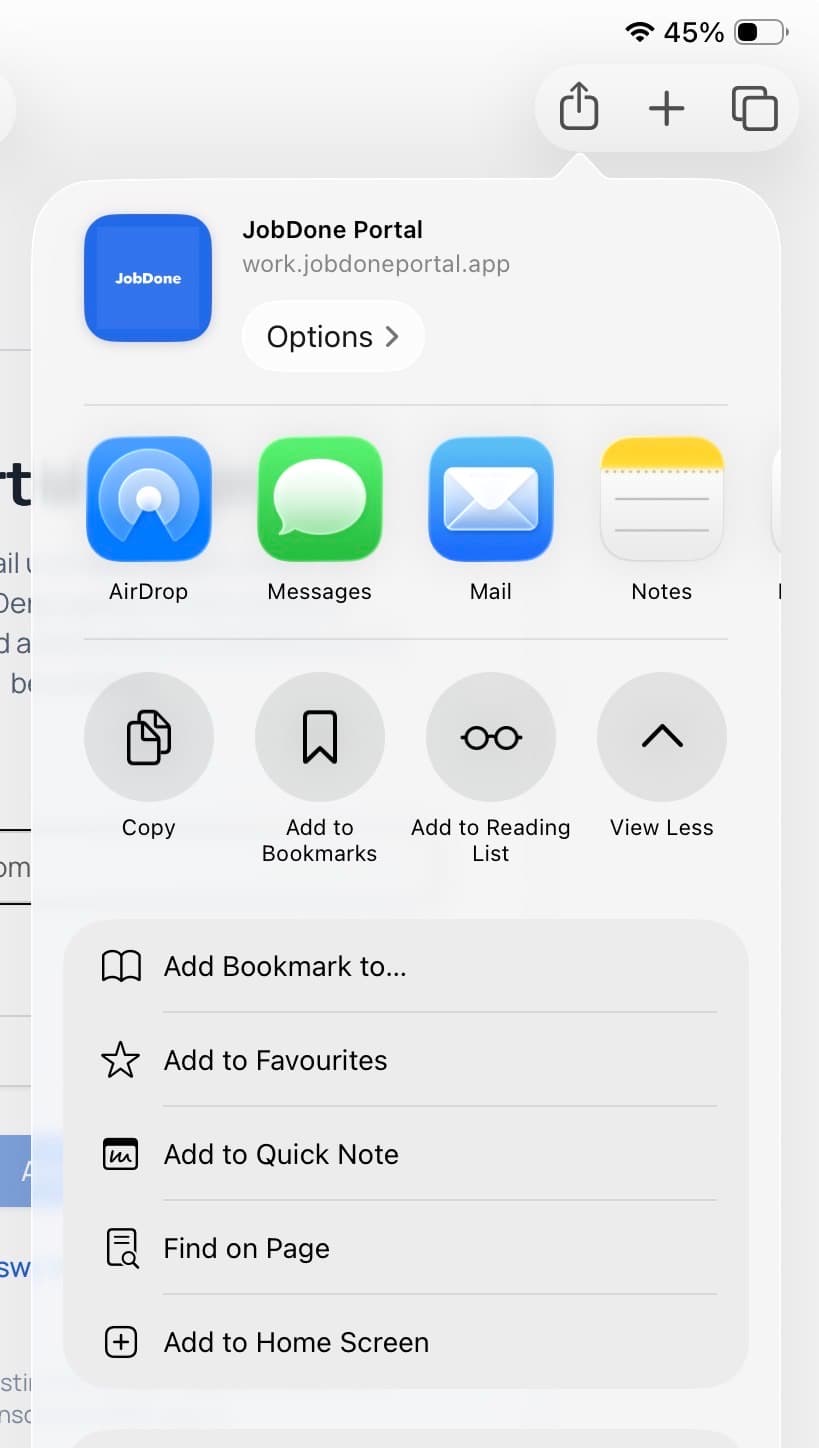
Choose “Add to Home Screen”
Scroll down the action list and tap “Add to Home Screen”.
04
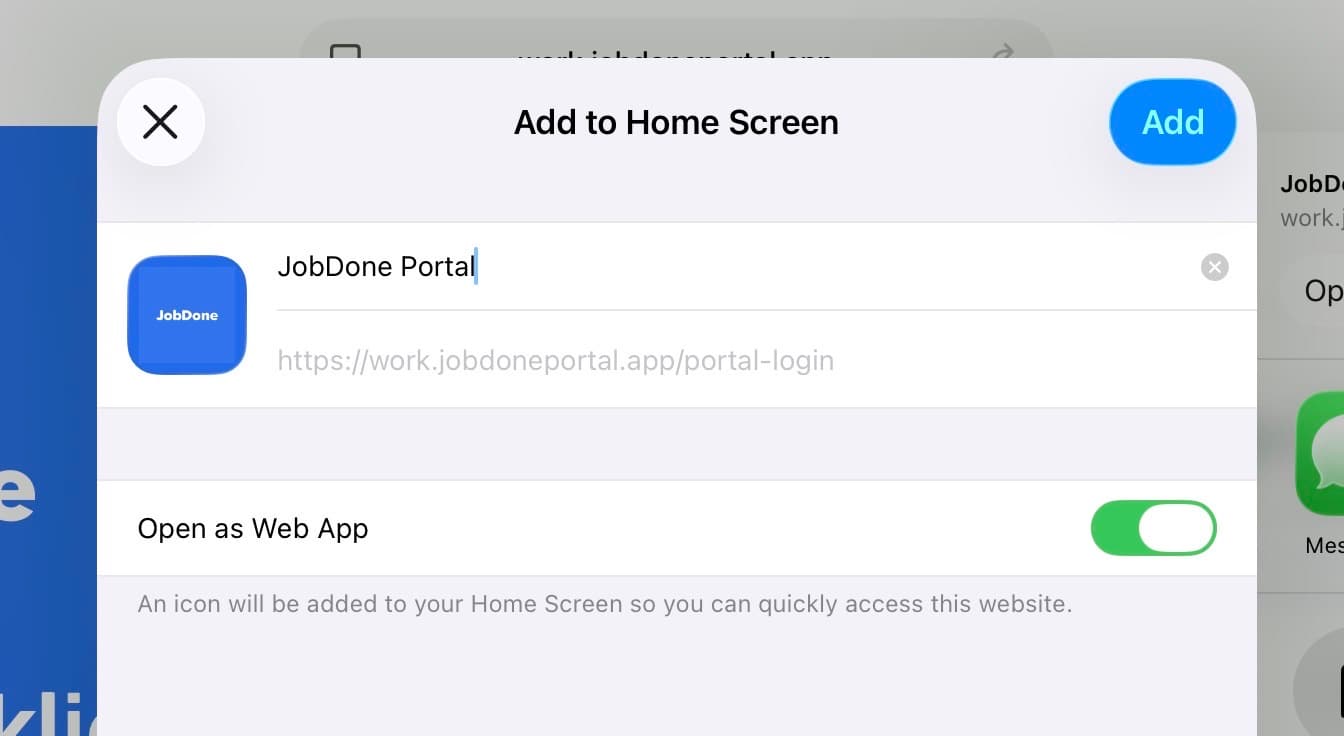
Check the name and open as a web app
Keep “Open as Web App” enabled, adjust the name if needed, then tap “Add”.
Done – your web app is installed
The new icon is now on the Home Screen. You can move it or place it in a folder like any other app.
If the option does not appear
- Make sure you are using Safari rather than the browser inside another app.
- Tap “View More” in the Share menu and scroll through the action list.
- Update iOS or iPadOS if the available options look substantially different.